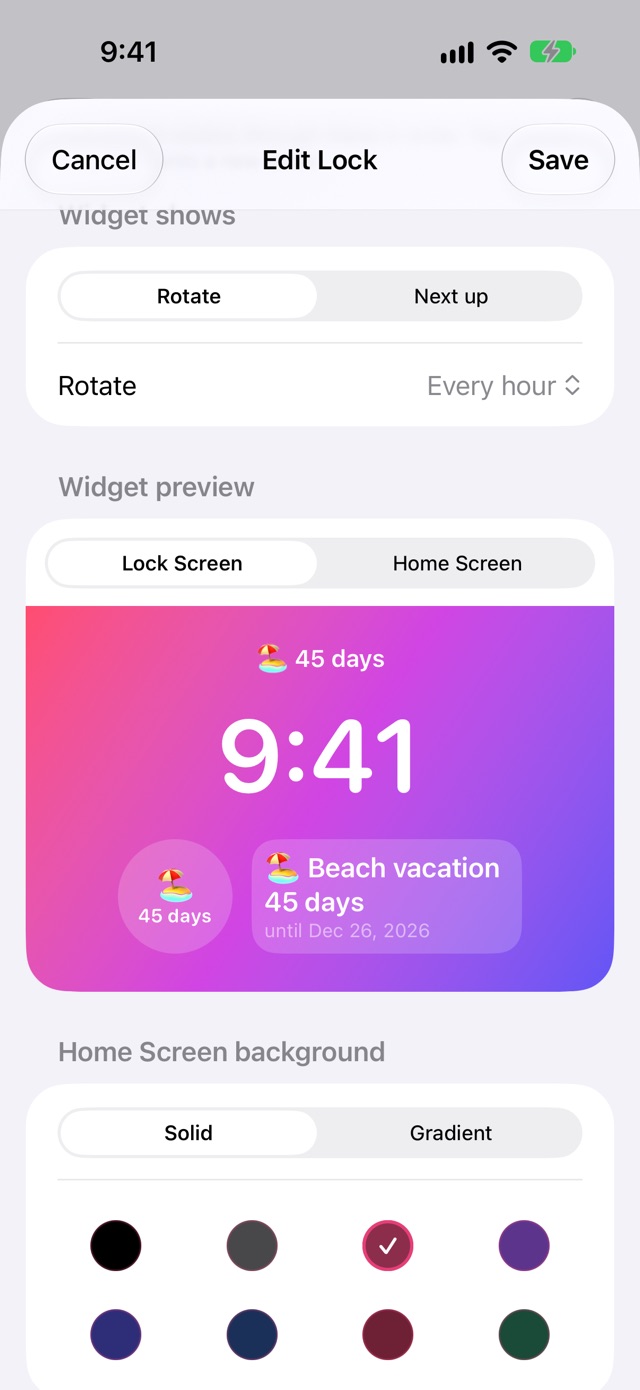
Rotate or Next up
A lock with several countdowns rotates through them every 15 minutes, hour, 6 hours, or day. Or set it to Next up, and it always shows whichever date is closest.
 Love Lock
Lock Screen widgets for iPhone and Apple Watch
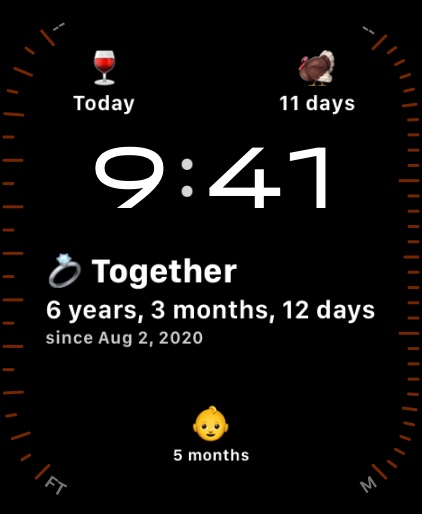
Love Lock counts down to, or up from, anniversaries, birthdays, due dates, vacations, and holidays, right on your Lock Screen, with matching widgets for your Home Screen too. Put several in one widget and it rotates through them, or always shows whichever is next. Also on Apple Watch, too: your locks sync to your watch face on their own.
Download on the App StoreFor iPhone with iOS 18 or later, including iPhone Duo, folded or open, and Apple Watch with watchOS 11 or later. No account, no ads, and nothing goes online.
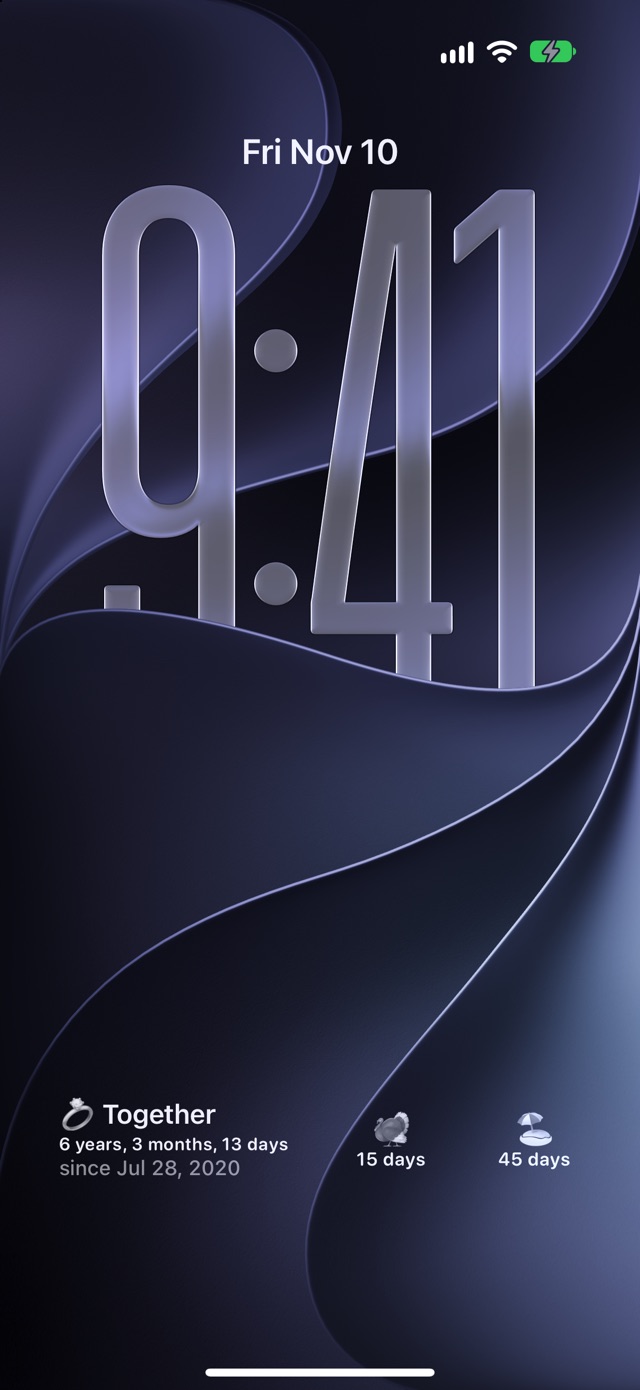
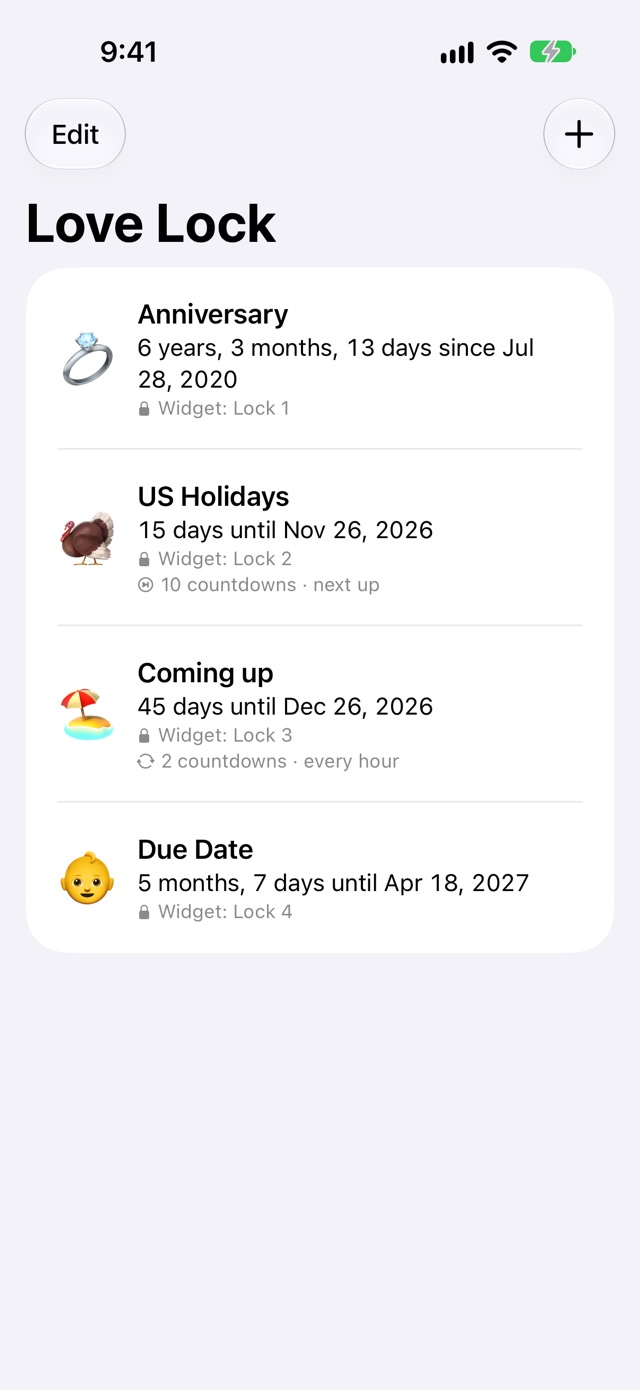
Each lock in the app is one Lock Screen widget. Fill it with one countdown or a handful, and choose how it shows them.
A lock with several countdowns rotates through them every 15 minutes, hour, 6 hours, or day. Or set it to Next up, and it always shows whichever date is closest.
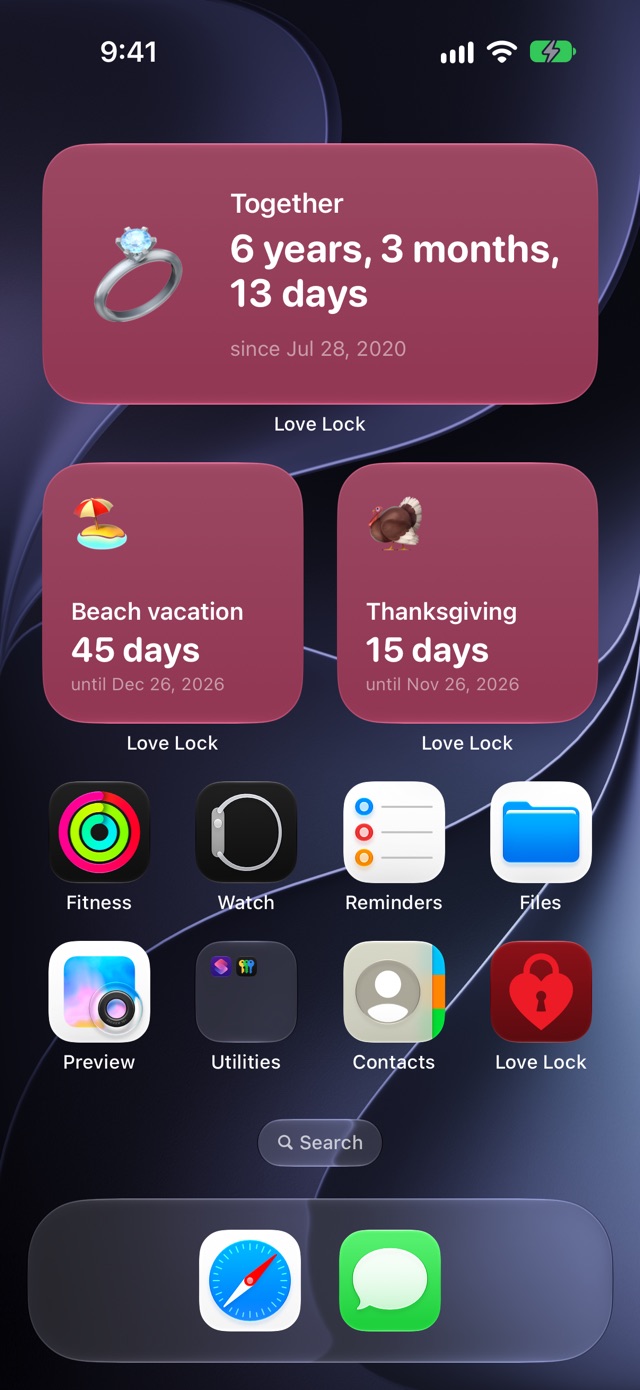
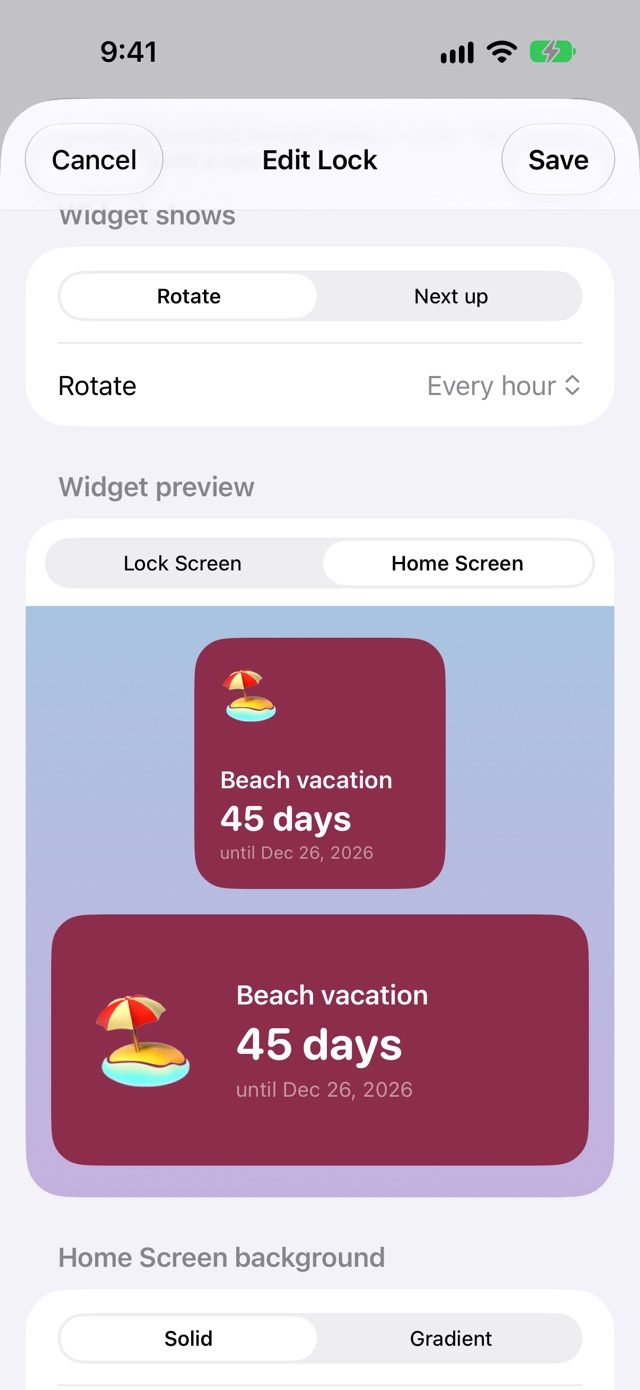
Circular, rectangular, and inline on the Lock Screen, plus small and medium widgets for the Home Screen and StandBy, in the color or gradient you choose. Make up to eight locks, each with its own widget.
Years, months, days, hours, and minutes, in any combination: "3 months, 12 days" or just "104 days".
Yearly dates can count up from the first one ("6 years together") or down to the next, with a "Today! 🎉" on the day itself.
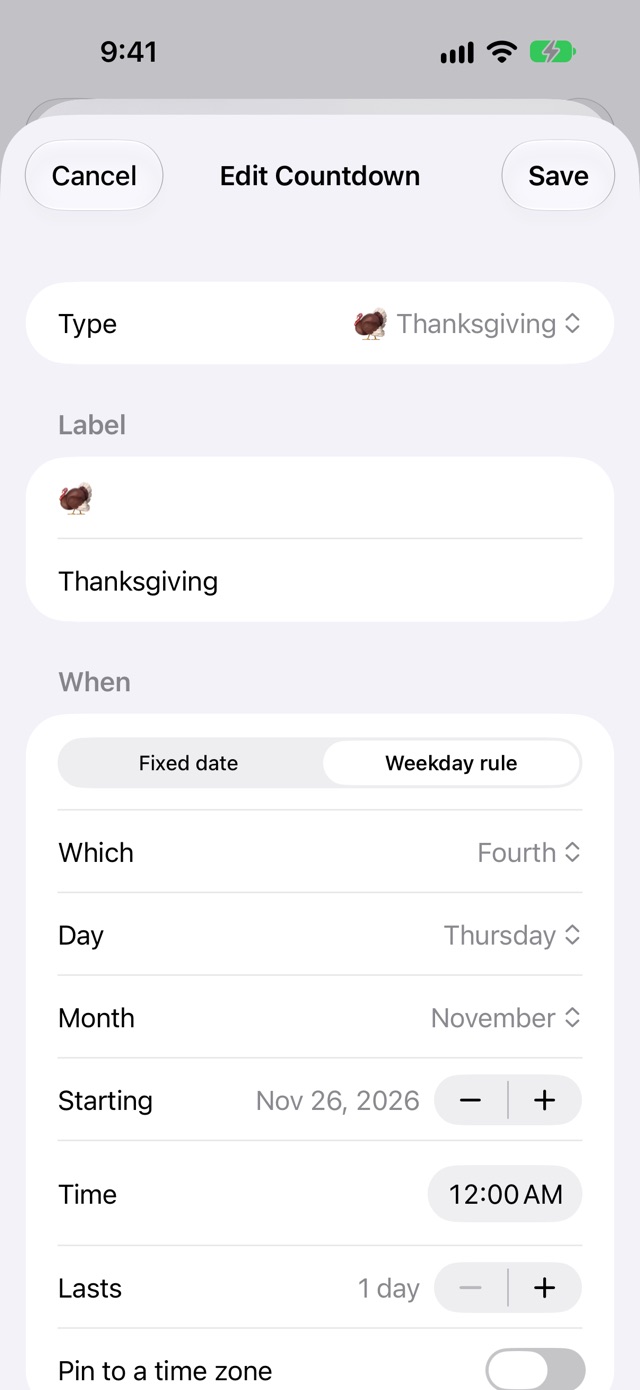
Use a rule like "fourth Thursday of November" or "last Monday of May", and it's worked out again every year. Holidays can follow Easter, or the Hebrew or Chinese calendar.
A week-long trip shows "today" for the whole week, then counts up. Hanukkah and Passover last 8 days, Rosh Hashanah 2.
Dates follow you when you travel, so midnight is your midnight. Pin a countdown to one time zone when the exact moment matters, such as a birth time.
iOS and watchOS keep the countdown text current on their own. Widgets and complications barely wake: at most once a day, and only for locks that need it.
Your dates stay on your iPhone, and your Apple Watch if you have one. No account, no network connection, no analytics, no tracking. Privacy policy
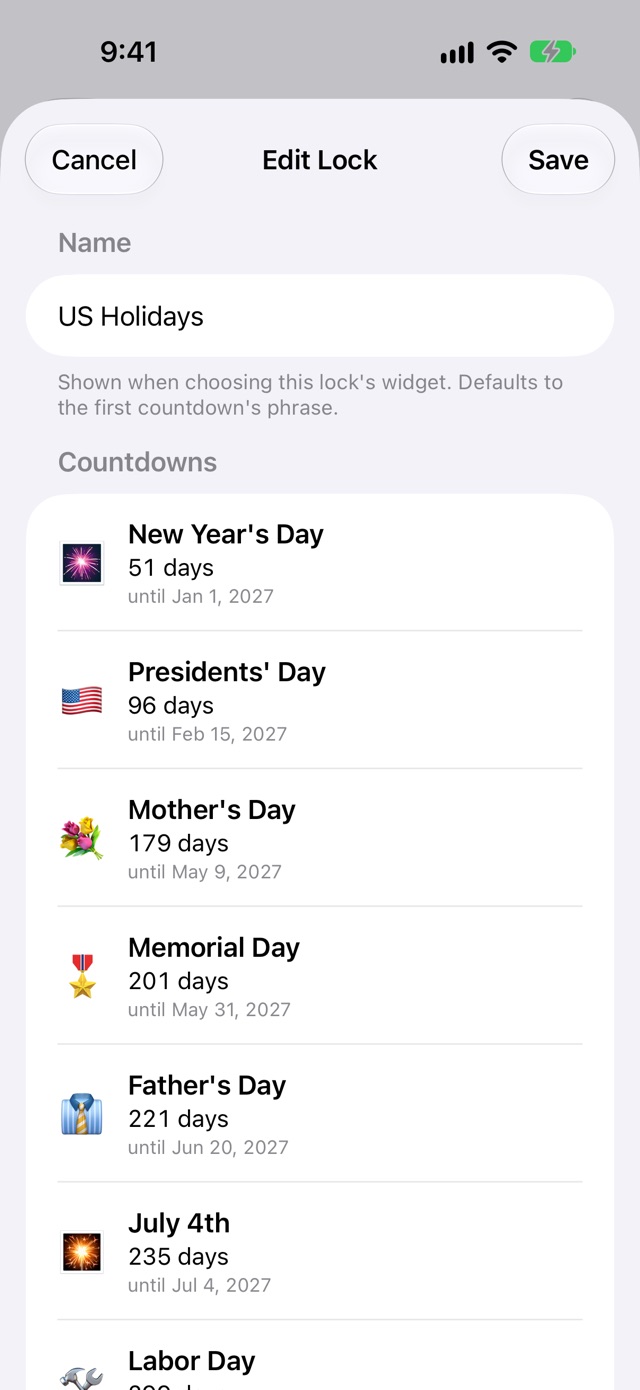
Start a lock from a preset, add countdowns, and see exactly what your widgets will show before you save.
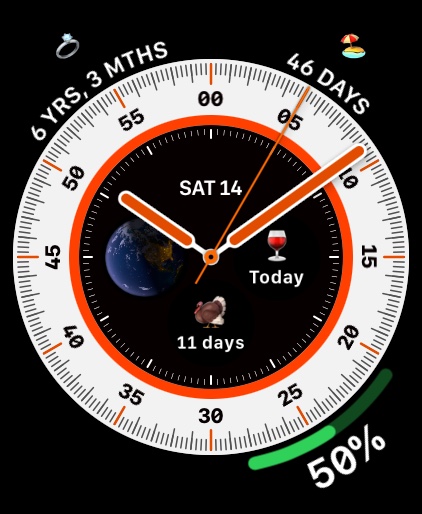
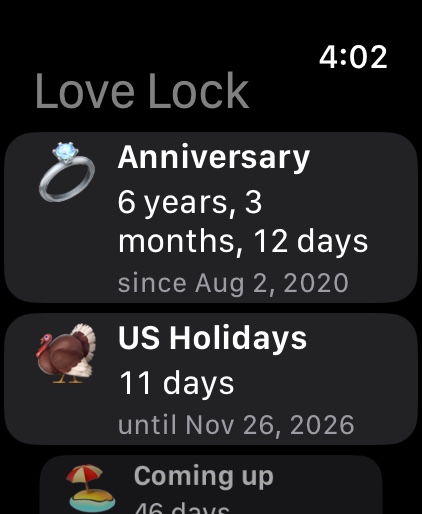
Your locks come with you. Make and edit them on your iPhone, and they appear on your watch on their own, with nothing to set up there. Put any lock on your watch face, by name.
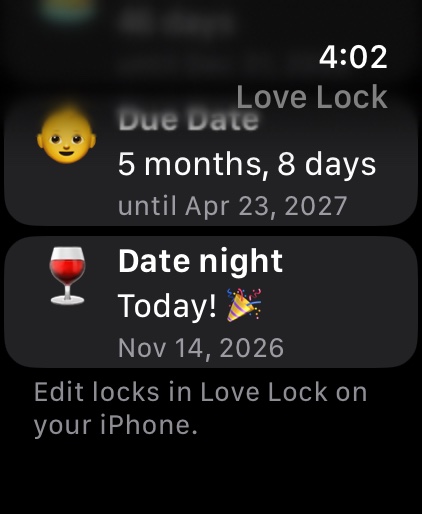
Rectangular complications also go in the Smart Stack, in the lock's own color.
Every preset comes with sensible units and its date worked out for you. The ready-made US Holidays lock shows whichever of ten days off and family holidays comes next.
On the Home Screen, touch and hold an empty spot, tap Edit, then Add Widget. Choose Love Lock, swipe to the size you want, and add the same numbered widget.
Widgets are numbered because iOS can't name them after your own locks. Lock 1 shows the first lock in the app, Lock 2 the second, and so on. More in Support
On Apple Watch, touch and hold the watch face, tap Edit, and swipe to Complications. Tap a spot, choose Love Lock, and pick a lock by name. More in Support